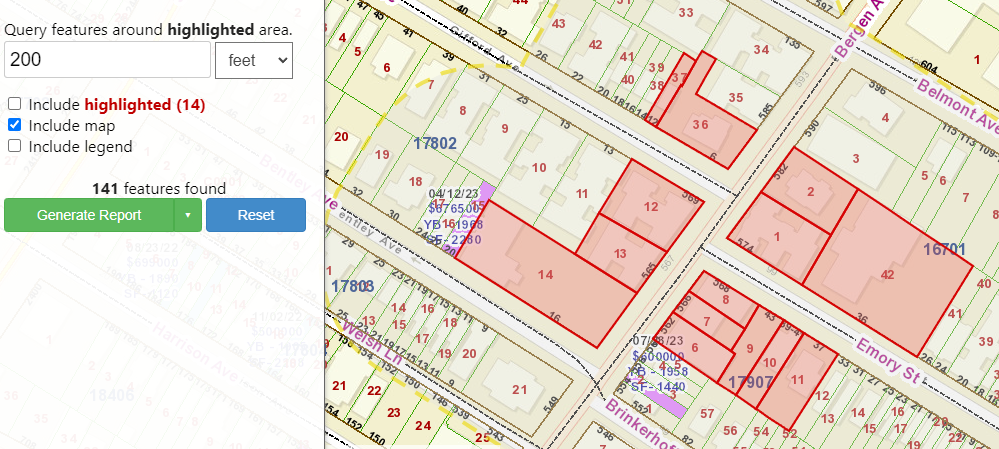
On the Dashboard, you will see a link to the “Buffer Report”.
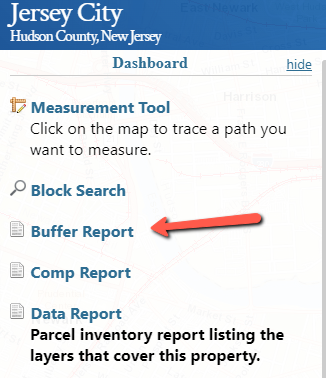
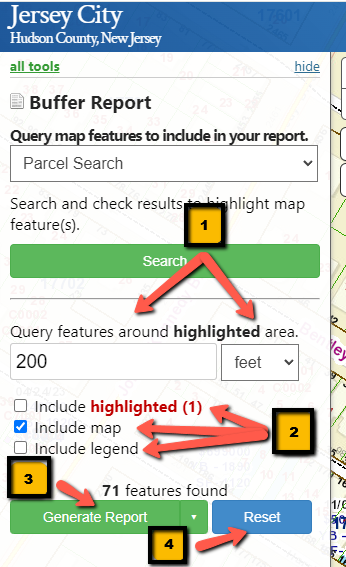
The next screen will ask you how you’d like to search for the map features… by “Parcel Search” or “Query by shape”. Then hit “Search”
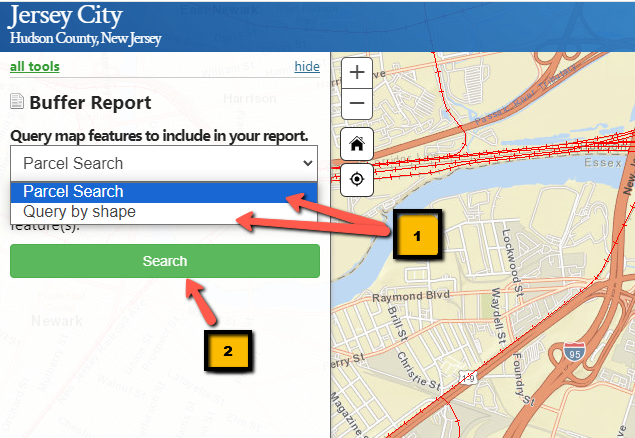
If you choose “Parcel Search” (scroll to bottom to see “Query by shape”), you be asked to type in the Block and Lot number of the parcel you want to buffer and hit “Search”. You’ll see the parcel listed below and the ability to select that parcel and zoom to it’s location. At the bottom, you’ll see that you have 1 parcel highlighted and link to go back to the report.
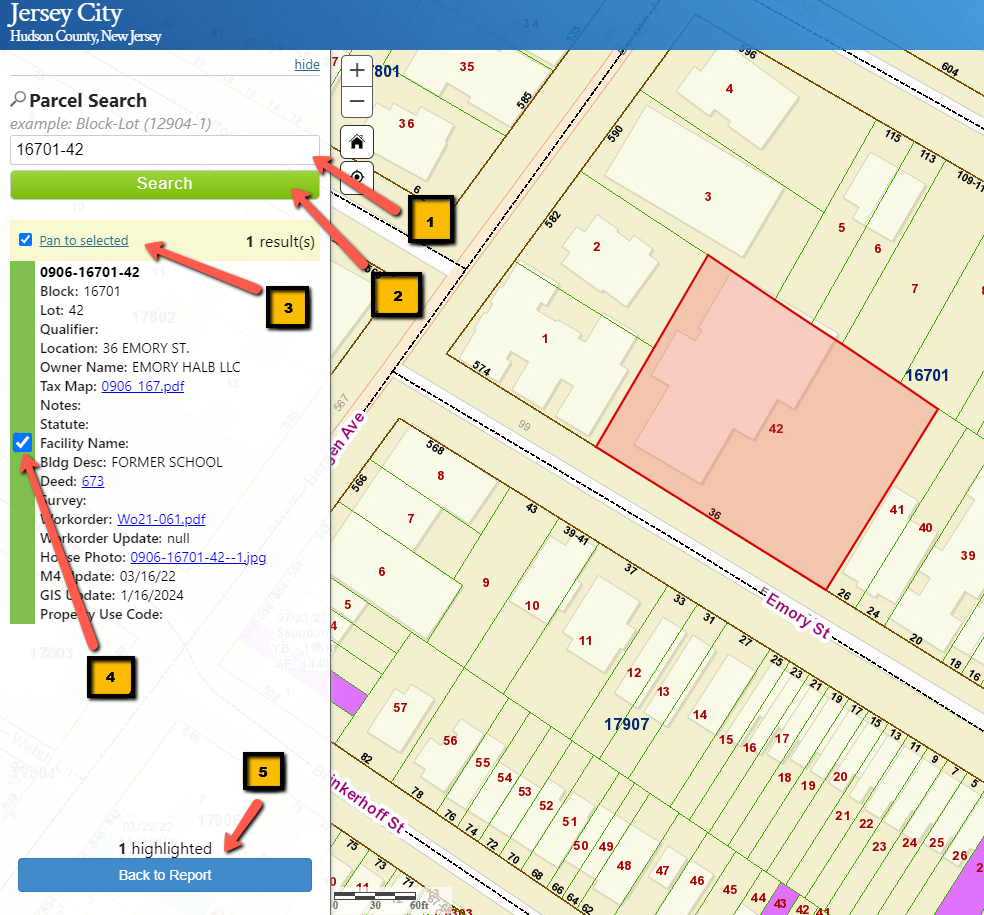
When you click on “Back to Report”, you’ll be asked about how big you want your buffer to be, the default is 200 feet. Any number can be chosen as well as an option for “Miles”. You’ll also the ability to select what you want to see in your report. You’ll have the option seeing the highlighted parcel, the map, and the legend. You can choose any or all 3.
When you’ve made your selection, click on “Generate Report”. If you noticed you made a mistake, just click on “Reset”, and that’ll take you back to the first step.
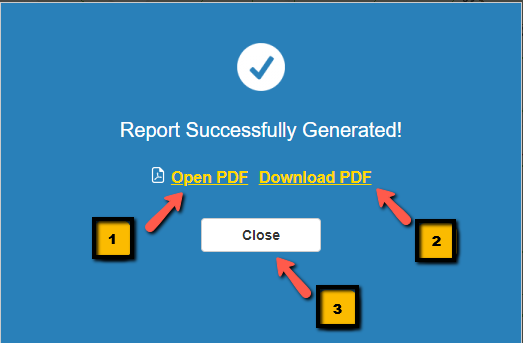
After clicking on “Generate Report”, you’ll that the report is being generated than when it’s complete, you’ll have the ability to either open the pdf or download it. You can do both. Selecting “Open PDF”, it will pop up in web browser. From there, you can print or save it if you so choose. When you close the browser, you’ll see that the can still download the pdf by clicking on the “Download PDF” link. When done, just hit “Close” and move on to any other tasks you need.
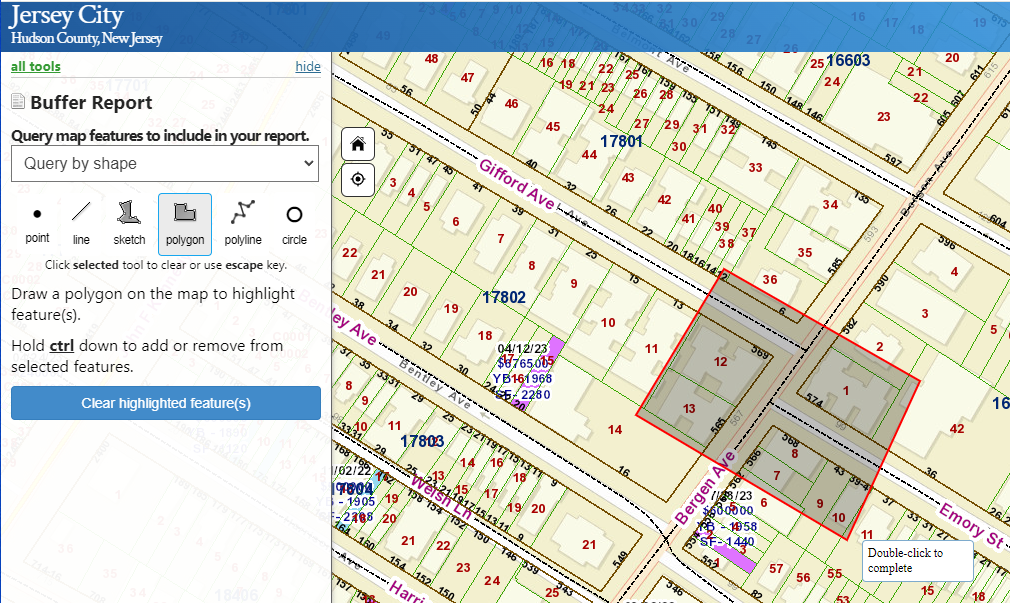
From above, if you chose “Query by shape”, you will have a few options on how you want to make your selection…
- Point
- Line
- Sketch
- Polygon
- Polyline
- Circle
If you selection “Polygon”, you’ll be able drawn a polygon around the area that you want buffered, and all of the parcels in that polygon will highlight.
After you’ve made your selection, like with selecting by Parcel, you will have the same selection options as searching by parcel and be able to generate your reports (like shown above).